 DriveFlow
Free, completely.
DriveFlow makes uploading and downloading Google Drive files easy, with a transfer queue you control and file protection right on your PC.
Version 0.2.6 for Windows 10 and 11 (64-bit).
- conference-september.mp4
- event-photos (412 files)
- q3-report.zip
- contract-2026.pdf
Use the button on the right to pause or resume each file.
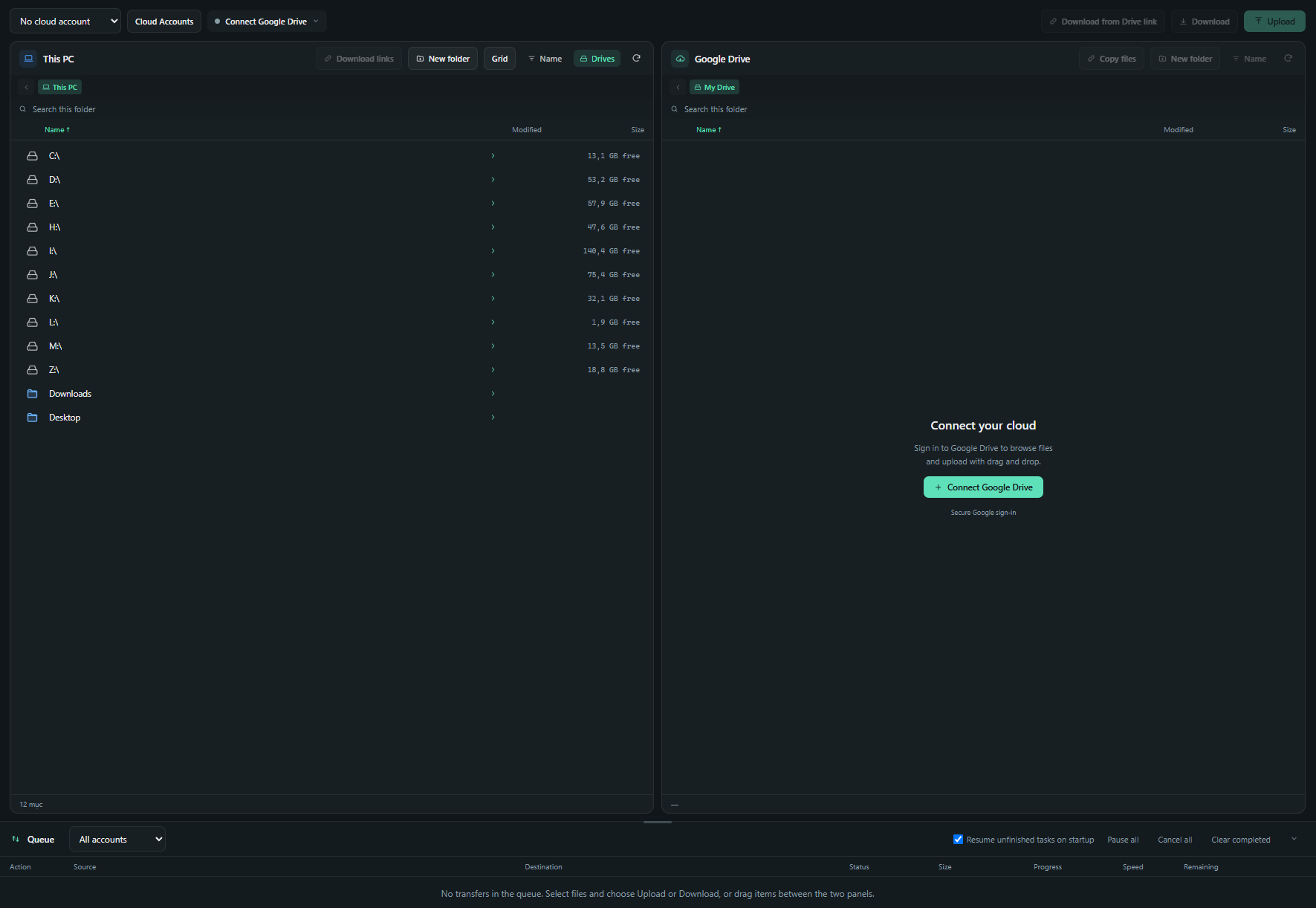
Your PC on one side, Google Drive on the other
Local drives on the left, Google Drive on the right. Pick files, choose upload or download, and DriveFlow adds them to the queue.
Upload and download files and folders
Select many files or a whole folder and transfer them in one go, in either direction between your PC and Google Drive.
A queue you can pause, file by file
See progress for every file, pause the ones that can wait, and resume them when you’re ready.
Multiple Google Drive accounts
Connect personal and work accounts and switch between them in one window.
Encrypt and restore files
Encrypt files on your PC before uploading and restore them when downloading, so files on Drive can’t be read without your password.
Get started in minutes
Download the app
Download the DriveFlow installer for Windows and run it like any other app.
Sign in with Google
Sign in with your Google account to activate DriveFlow. There’s no key to enter.
Connect Drive
Allow DriveFlow to access the Google Drive you want to use, then start transferring.
Frequently asked questions
Is DriveFlow really free?
Yes. Every feature on this page is free to use, with no payment card required. If that ever changes, we’ll announce it clearly before anything takes effect.
Why do I sign in with Google?
Your DriveFlow account activates the app and lets you manage the computers you’ve signed in on. Connecting Google Drive for transfers is a separate step where you choose which Drive accounts to use.
Does DriveFlow store my files on its servers?
No. Files go directly between your PC and Google Drive. DriveFlow’s servers only keep your account details, activation status and list of devices.
How many computers can I use?
You can sign in on more than one computer, then see or sign out each one from your account page.
Which operating systems are supported?
Windows 10 and Windows 11, 64-bit. There’s no macOS or Linux version yet.
How do I get help?
Email contact@driveflow.casa with your DriveFlow version and a description of the problem. Screenshots help.